Alternative Payment Methods using Checkout#
XGateway supports deposits with preliminary creation of invoices with a fixed exchange rate. This is the recommended integration form, providing merchants with a ready-made UI for deposits with crypto assets. This page explains the generic flow for invoice creation, callback handling and testing.
Read this page, then choose a payment method you want to support - see the choosing the payment method section below - and implement the specific payload example. Test it and move on to the next one.
Please read the page explaining the several important currency terms before starting the integration. It will help you use invoices API and track callback details effectively.
Choosing the payment method#
This step is handled by the system if integration successfully completed.
If you are in the middle of integration:
- Check one of the pages for the payload and limitations you plan to support and test.
- Continue with the invoice creation guide.
- Use the Demo env for testing.
Demo / Prod URLs
https://api.demo.xgateway.tech/api/v2/invoices https://api.xgateway.tech/api/v2/invoices Creating an Invoice#
For all Checkout scenarios, there is a single API endpoint to initiate the payment. The system automatically determines the payment method based on the input parameters provided by the merchant.
In other words, the payload defines the exact behavior of this endpoint. Please pay close attention to the arguments you pass and the return values you receive. Usually, the response for a 422 error code is verbose enough to help you understand which field failed validation.
Extended version of this endpoint can be found on Advanced features of invoice creation page. Extended version has different return value and its own benefits. It is not a part of this guide.
After a successful call, you will receive a link to a Checkout page configured according to your request.
The Checkout page will prompt the customer for any data missing from the initial request that is required to create an invoice.
Once all required data is provided, the Checkout page will redirect the customer to the local payment system (such as Papara or UPI).
The system will skip all XGateway intermediate pages and redirect the customer directly to the payment method, but only if all required data is provided.
Remember to authorize the request with your key using the x-api-key header.
The default lifetime of an invoice is 15 minutes.
iFrame or redirect#
The URL returned by the invoice creation API can be used in two ways: as a redirect or within an iFrame.
In case of a redirect, the user is sent to a new page where they complete the payment. This can be done using a new tab too. A redirect is an option with less effort.
When the deposit is done, the user is redirected back to your app: either to the dynamic URL specified in the redirectUrl parameter or to a pre-set static URL.
The invoice URL may also be used in an iFrame. Please check the iFrame setup page for detailed instructions.
Our local partners for Alternative Payment Methods may block customers using VPNs. It is generally recommended to warn customers that a payment method cannot be accessed through a VPN.
Processing a callback#
Invoices declare the intention to pay a certain amount, but they are not binding obligations — only completed transactions matter. Your integration should be robust enough to handle all edge cases (see the Invoices and Underpayments page for details). XGateway offers a combination of callbacks and API endpoints to make integration both simple and reliable.
XGateway uses a callback mechanism to notify you of state changes. Always use callbacks to detect transaction events, and then confirm the final status or balance using the API. Do not rely solely on invoice creation or polling. Callbacks are the primary driver for state changes, while the API is the source of truth for confirmation.
When a customer makes a deposit, XGateway detects the transaction and sends a deposit callback to the merchant. Below is an example of such a callback. For detailed information, please visit the transaction callbacks for deposits and withdrawals page.
Callback example
{
   "callbackType":"transaction",
   "amount":"200",
   "applicationId":null,
   "currency":"TRY",
   "customerId":"000394",
   "hash":"NBxlvP/l9axE2...Rplh+xw==",
   "id":"1234dc37-27ea-4615-9f3c-153ed06cbf12",
   "invoiceId":"edef36a0-5c37-4fe9-9d59-96e23014072d",
   "network":null,
   "orderId":null,
   "status":"confirmed",
   "transactionHash":null,
   "type":"deposit",
   "info":{
      "exchangeRate":"1.03759",
      "referenceAmount":"207.52",
      "referenceCurrency":"USD",
      "referenceExchangeRate":"1.000065",
      "transactionAmount":"207.51518",
      "transactionCurrency":"tUSDT"
   },
   "fees":{
      "processing":"7.263031",
      "technical":null
   },
   "eur":"200.12",
   "usd":"207.52"
}
Callbacks for Withdraw requests will be sent to the same URL. Make sure to properly filter callbacks by type.
Confirming a transaction#
Prefer callbacks over polling; they are signed and retried. For high-risk operations, confirm state via API (see the risks and details on the Callbacks Handling page). API responses are the source of truth.
To confirm the callback is valid, please use the API endpoint.
Testing Alternative Payment Methods deposits on Demo environment#
You can test deposits in the Demo Environment. Some (not all) of the APMs provide simulation capability directly in the UI of the sandbox environment.
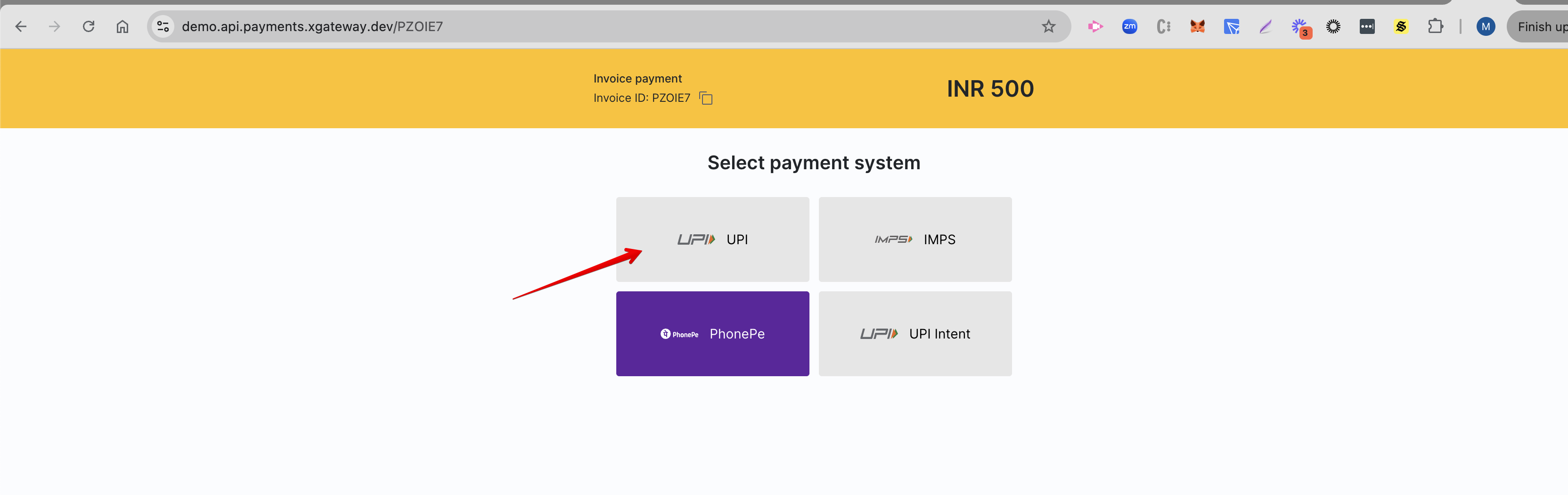
INR testing flow on Demo environment
Open the invoice link. Select the UPI provider.
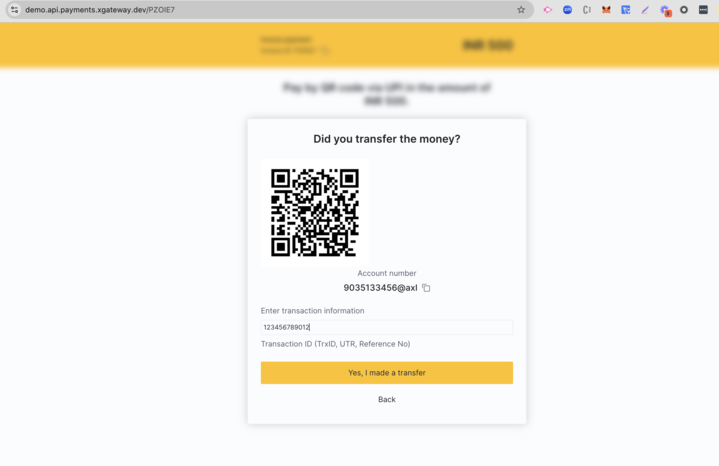
Proceed up untill the form with a request of transaction information. Input any 12 digits
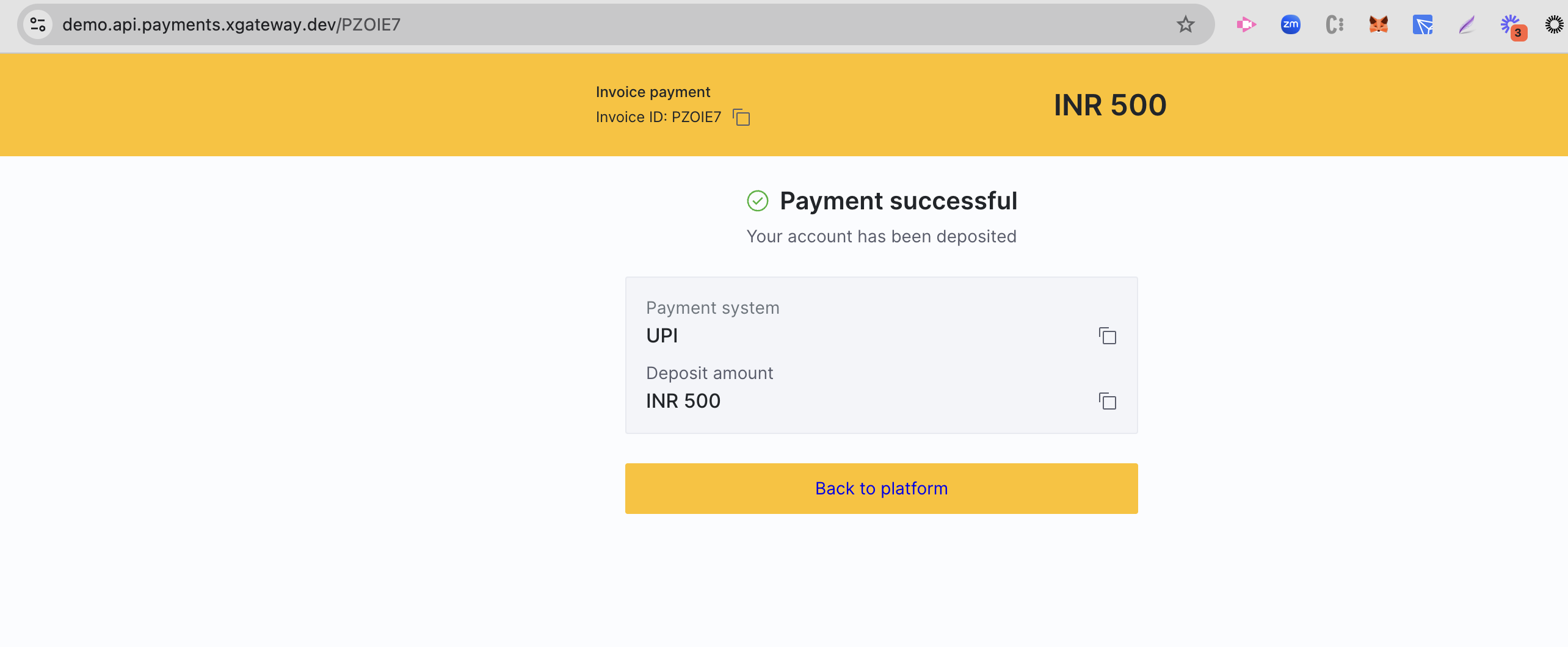
Send the data. Wait till the system "confirms" the payment.
For the time being no sandbox is available for TRY. The Demo environment is connected to a separate Papara production instance. Instead, try using the simulation API.
Testing with transaction simulation#
The Demo Environment provides an API to simulate a deposit for supported APMs.