External (scalar)#
Styles cheatsheet - this is not a part of the public documentation!
Items shown here are ONLY for UI styling!
Page icons#
Material lib assets are preferred to keep page styling consistent.
Prefer using outlined icons over the thick ones. Add :material-<icon-name>: right after the paragraph style to apply a custom icon that will follow the font size and color.
Here is an example#
Use a Pictogrammers library to search for supported assets.
Header templates#
Currently there are 2 main page templates: - default one is material design-native, it supports content tree on the left, middle section for the main text, and in-place Table of Contents to the right. Rule of thumb is to use it if there is no OpenAPI specification on the page. This template can be tweaked with custom yml settings, but it is usually good enough to use default settings and omit them completely. - scalar-api.html- overridden template to widen page a bit and properly initialise the Scalar OpenAPI renderer.
Default template customisation#
Excluding page from search and hiding the table of contents are two main reasons you'd want to add this header on a default style page. Simply drop this (so called) front-matter at the top of the file:
---
search:
  exclude: true
hide:
  toc
---
Scalar-friendly template customisation#
Provide a custom template to be able to display a single-endpoint scalar card with OpenAPI docs. Modern layout is chosen to keep docs format close to the previous versions - the problem with it is that the default page template is too narrow to properly display it. Custom scalar-api.html template solves this problem. Use the following template for the pages where you want to use OpenAPI endpoint macro:
---
title: Deposit and Withdrawal simulation
template: scalar-api.html
scalar:
  hide_tags: true
  hide_introduction: true
  minimal_introduction: false
---
Adding a Scalar OpenAPI macro#
To embed an interactive endpoint description, use the openapi_operation macro:
{{ openapi_operation("external.json", "/exchange/rate", "get", rest_header=True) }}
| Parameter | Description |
|---|---|
"external.json" | Source OpenAPI spec in tools/openapi_source/ |
"/exchange/rate" | Endpoint path |
"get" | HTTP method |
rest_header=True | (Optional) Show REST header with method badge and URL |
The rest_header=True option is recommended for most use cases — it provides clear visual context for the endpoint.
rest_header=True is optional, but probably will be updated to be turned on by default. At least our use cases mostly benefit from that.
external.json file resides in tools/openapi_source/ folder and is a source of truth for the expansion script. On build (and during deploy) script extracts every endpoint mentioned in the macro calls over the project, and puts formatted versions under assets/openapi/extracted/ folder. You should not commit /extracted/ folder and its contents. tools/openapi_source/ folder is excluded from the dockerignore file (= added to the docker image on build), but it is not served as an artifact.
The result is down below:
Adding an endpoint header without details#
If you want to show an API method in a nice way but don't want to generate OpenAPI docs for it - for example, you describe someone else's endpoint, like merchant callback, you can wrap it in a div with the following styles:
<div class="openapi-rest-header">
  <span class="openapi-method openapi-method-post">POST</span>
  <code>https://your-callback-url-here.com/handle-transaction</code>
</div>
https://your-callback-url-here.com/handle-transaction Updating the OpenAPI docs#
To update the OpenAPI documentation:
- Replace
external.jsonwith the file built from a release version of x-gateway-core (see the core repo's README for details). - For custom endpoints, add a
custom.jsonorcustom.ymlfile to thetools/openapi_source/folder and reference it in your macro just like the base one. - You can trim OpenAPI files using the Python script in the
/tools/directory for faster loading and less exposure. - Other embedding methods are supported but not documented here; this guide will be updated as new options are released.
Tip: Do not commit the
/extracted/folder or its contents. These are generated automatically during build/deploy.
Alternative syntax#
Check the script and template first if you want to embed file that way!
<!-- Optional fallback / overrides via inline config -->
<div class="scalar-api"
     id="api-1"
     data-url="/assets/openapi/external-min.json"
     data-title="API #1">
</div>
Admonitions section#
Admonitions customised to match the old style of the docs: instead of bold, color-filled header, and framed body, we mostly use thin inlined version as shown below; default versions are also supported.
Simple admonition (default)#
Lorem ipsum dolor sit amet, consectetur adipi
Stacked admonitions#
The system will skip all XGateway intermediate pages and redirect the customer directly to the payment method only if all required data is provided.
INR Peer to Peer deposits
Create an invoice:
{
    "orderId": "order-test-prod",
    "customerId": "test-prod2025",
    "baseCurrency": "INR",
    "amount": 1000
}
Create and activate an invoice for INR (opens the payment method directly):
{
    "orderId": "order-test-prod",
    "customerId": "test-prod2025",
    "baseCurrency": "INR",
    "amount": 1000,
    "customerFirstName": "John",
    "customerLastName": "Doe",
    "paymentCurrency": "INR",
    "customerEmail": "[email protected]",
    "customerCountry": "AU", // Optional for INR-P3
    "customerPhone": "1234567890" // Must be a 10 digits number. Optional for INR-P3
}
If you get a bad request response without exact information about the erroneous field, please check the syntax of the request.
INR UPI Intent deposits
NOTE: Intents method is not currently available on Demo Environment due to specifics of the APM.
Create an invoice:
{
    "paymentMethod": "intent",
    "orderId": "order-test-prod",
    "customerId": "test-prod2025",
    "baseCurrency": "INR",
    "amount": 1000
}
Payment method is a mandatory parameter. To avoid blocked payments, use the correct payment method.
The client's address and the client's issuer bank country must be the same.
The system will skip all XGateway intermediate pages and redirect the customer directly to the payment method, but only if all required data is provided. Integration can be implemented and tested with the mandatory fields alone; however, it is highly recommended to proceed with pre-filled forms, as this can dramatically simplify the flow for the end user and improve conversion. Please don't forget to check the pre-population section and the guide on conversion optimisation down below.
Admonition with enforced inline anchor#
Withdraw callback
{
  "fees": {
    "processing": "0.08",
    "technical": null
  },
  "eur": "1.72",
  "usd": "2"
}
Now, custom anchor will work on this page.
Callback disclaimers#
Our regular message across the docs#
Prefer callbacks over polling; they are signed and retried. For high-risk operations, confirm state via API (see the risks and details on the Callbacks Handling page). API responses are the source of truth.
Please don't modify this message OR do it uniformly. Note that the path to '../miscellaneous' folder is relative: you will see the misaligned links in console if you use hot reload (docker or local). Also note that script that checks for the broken links runs on deploy and might add several seconds of delays per link - please pay attention to the console output before pushing, and don't add lots of hanging links at once.
General markdown, html and formatting tips#
Adding, hiding, exposing pages in navigation using MkDocs#
MkDocs navigation is controlled by the nav: section in your mkdocs.yml file. You can:
- Add a page to navigation:
- Add the file path under the appropriate section in
nav:. The order in the list determines the order in the sidebar. - Example:
nav: - Overview: - Welcome: index.md - API Reference: api.md - Hide a page from navigation (but keep it accessible):
- Do not include the file in
nav:. The page will still be built and accessible via direct link, but won't appear in the sidebar. - Useful for landing pages, legal notices, or experimental docs.
- Exclude a page from search:
- Add the following front-matter to the top of the file:
--- search: exclude: true --- - Exclude a page from sitemap and robots:
- Add these to the front-matter:
--- sitemap: exclude: true robots: noindex, nofollow --- - Hide the Table of Contents (ToC) on a page:
- Add to the front-matter:
---
hide:
  toc
---
Tip: Pages not listed in
nav:are still built and can be linked to from other pages. Use this for utility or reference docs you don't want in the main navigation.
For more, see the MkDocs Material navigation reference.
Image with themes alignment sample#
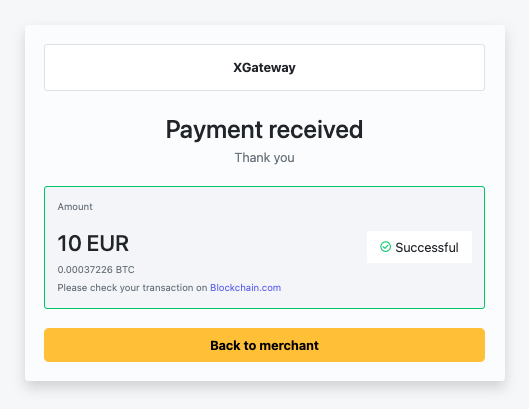
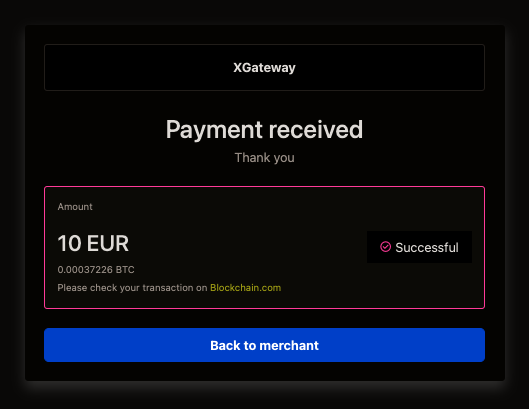
Mkdocs supports switching the light/dark theme images, if provided. The syntax is very simple: add #only-light and #only-dark after the asset URL:
<figure markdown="span">
{ width="265" }
{ width="265" }
<figcaption>Success checkout page</figcaption>
</figure>
Better inline color highlighting #
Color and style of the text can be customised inline if necessary (for example, to match the chart or 3rd party screenshot). Try not to use the custom styles if possible: it is much easier to support text-only documents. Don't forget to specify both font and background colors to keep consistency on theme switching.
Sample from Non-Invoice payments page where highlighted text should match the color scheme of an external chart: 1. Non-Invoice Payments * These occur when a user sends a payment without a corresponding merchant invoice, such as repeating a prior payment directly from their bank or wallet without initiating a checkout. * Non-invoice payments can also occur during a user’s first transaction, though this scenario is less common. Represented as Option A (orange) and Option E (blue) on the diagram.
Generating a markdown table#
Creating tables with hyphens and pipes can be tedious. To speed up the process, try using the markdown tables generator.
Centering a markdown table#
Simply make a div and put style in it. Don't forget to add blank lines before and after the content block so it won't break the markdown parser.
| Filter | What it means |
|---|---|
| 24 hours | From now → 24 hours ago |
| 7 days | From now → 7 × 24 hours ago |
Markdown soft new lines#
Add two whitespaces in the end of the line to mark it should be new line, but no extra spacing:
✅ The filter uses the user's local time zone to determine "now".
✅ The current day is included — the window ends at the exact time of filter application.
❌ These filters do not represent full calendar days (e.g., "Monday 00:00 to Sunday 23:59").
Highlighted lines in json, single and multiple#
EUR invoice - Forex Visa or Mastercard, Global
{
"amount": "10",
"baseCurrency": "EUR",
"paymentCurrency": "EUR",
"orderId": "random-order-id",
"customerId": "random-customer-id",
"paymentMethod": "VisaMastercardTradingNonEU"
}
Extended form for automatic invoice activation
{
"amount": 10,
"baseCurrency": "EUR",
"customerId": "ff36a7a5-08fd-418a-a150-f6f2d36676a8",
"paymentMethod": "BASIC_CARD",
"customerEmail": "[email protected]",
"customerFirstName": "John",
"customerLastName": "Doe",
"customerPhone": "49 15123456789",
"customerDateOfBirth": "2000-02-10",
"paymentCurrency": "EUR",
"billingAddress": {
    "addressLine1": "Hlavni mesto Praha 11 22",
    "city": "Prague",
    "countryCode": "CZ",
    "postalCode": "15000",
    "state": "Praha, Hlavni mesto"
}
}
AI tools#
Quick Guide for AI Agents & Automation#
- To add a new page:
- Create a
.mdfile in the appropriate folder (prefer markdown over HTML for content and formatting). - Use British spelling for all text and headings.
- Add the page to the
nav:section inmkdocs.ymlto expose it in navigation, or omit to keep it accessible only by direct link. -
Add front matter as needed (e.g., to hide from search, exclude from sitemap, or hide ToC).
-
To modify an existing page:
- Edit the markdown file directly, maintaining British spelling and markdown-first formatting.
- Use admonitions and code blocks as shown in this guide for consistency.
-
Prefer markdown tables, lists, and formatting; use HTML only for advanced layout or styling needs.
-
General notes:
- All documentation should use British English spelling (e.g., "colour", "optimise").
- Markdown is preferred for all content, headings, and formatting. Use HTML sparingly and only when markdown cannot achieve the desired result.
- Review navigation, search, and visibility settings in both the file front matter and
mkdocs.yml.
For more details, see the navigation and formatting sections above.